
After completing the necessary steps to create a custom data source, setup field aliases, create record types, push matters with access controls and create records, its time to test the end to end workflow. It is assumed at this step that data now exists in Smarter Drafter from your designated source system.
If you do not have a Form to test with, create a simple form with the following instructions:
- In Smarter Drafter, navigate to Build > Forms
- Choose a New Form
- In the form, create sections and fields
- Give each of the fields you want to test data sync, with a field alias
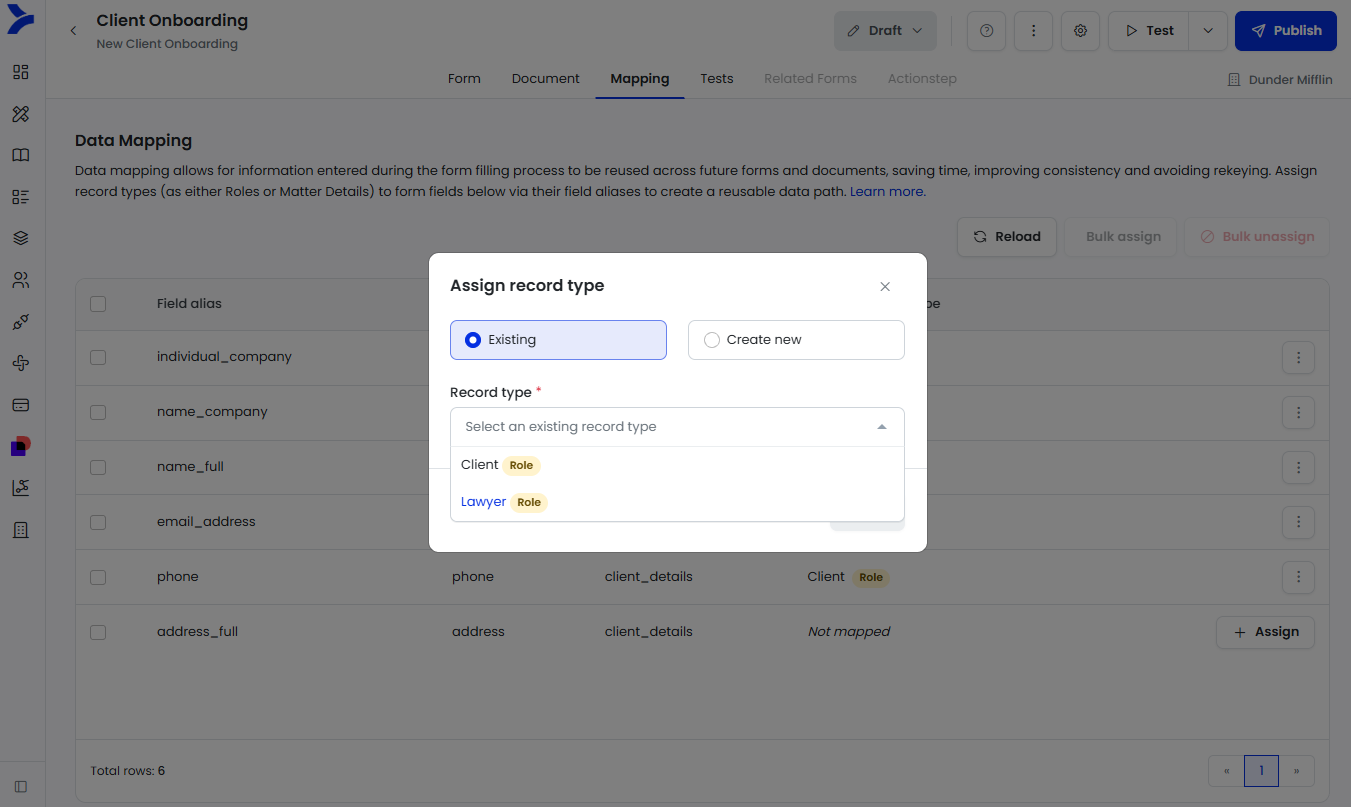
- Next, navigate to Mapping tab. Mapping is where Record Types can be assigned to a field alias to link the data.
- For each of the field aliases, assign the relevant Record Type
- Test the form to ensure it works as expected with the fields showing up in the correct order
- Click Test, then select your custom data source in the Matter Source and choose the relevant matter.
- Data should then start to populate if the form has been setup with the appropriate record and record type
- Start the form, and verify the data has been populated
Further Resources
- Get the latest changes on a record: searching changes for a record and its field aliases can be achieved using the 'Search for records based on query parameters' API.
- Get answers from a specific form submissions: For a specific form, use the 'Searches for submissions based on the provided query parameters' API to define the form ID and then retrieve the list of submissions. From there, use the 'Get a submission by its ID' API to pull the answers from each of the submissions.
- Webhooks: Smarter Drafter supports webhooks that sends all answers and documents generated from a submission. See Webhooks for more details.